Canva Layout
Canva Layout is an inline feature on the My QR Codes page that lets you arrange selected QR codes into a printable grid layout.
How to Access
- Log in to my.govalid.org
- Go to My QR Codes
- Select one or more QR codes using the checkboxes
- Click the Canva Layout button above the table
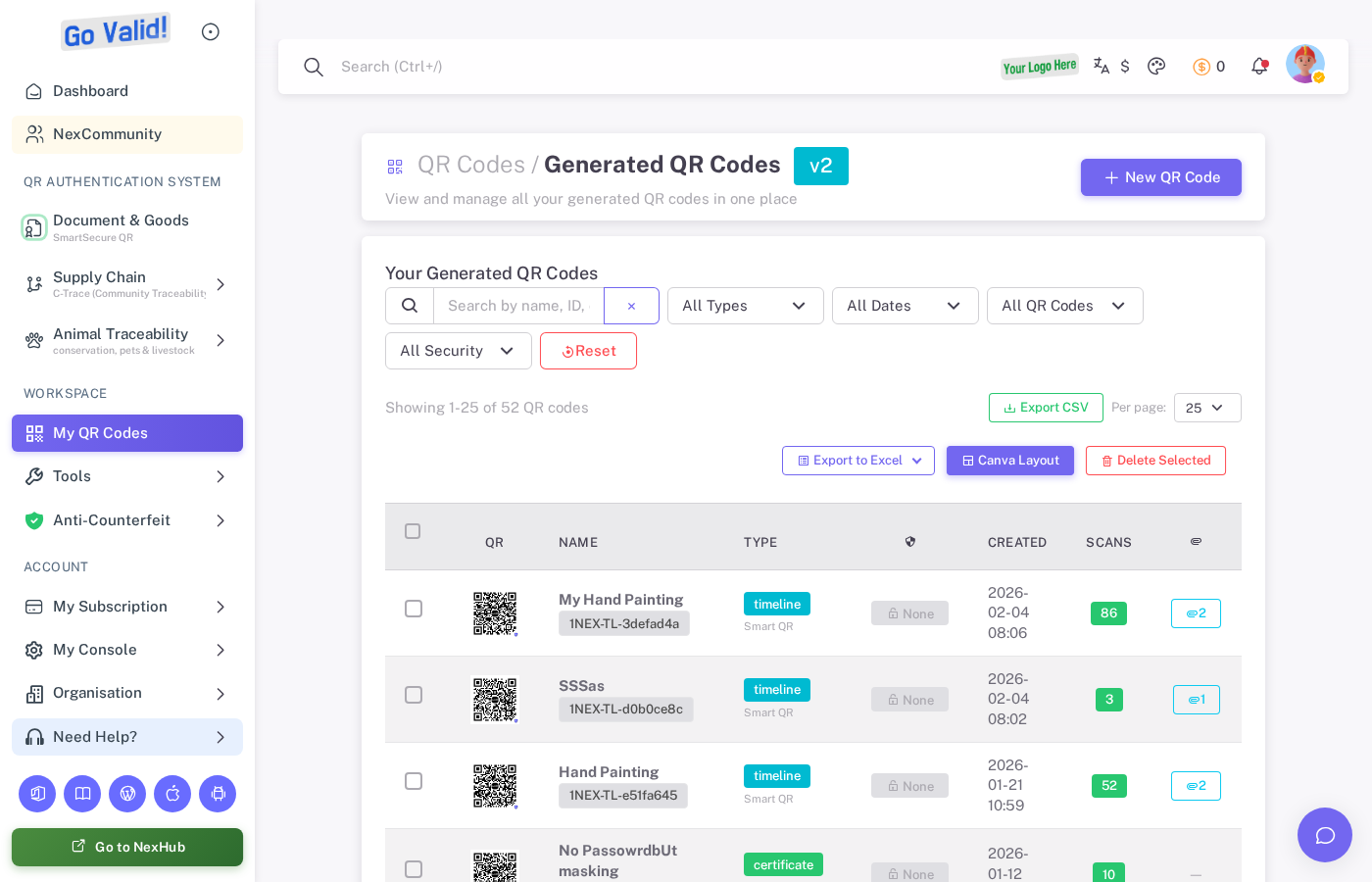
Select QR codes from the list using checkboxes, then click Canva Layout to arrange them for printing.
The layout configuration panel will appear inline below the QR code table.
Features
QR Code Selection
- Select individual QR codes from the table using checkboxes
- Click Canva Layout to open the layout panel with your selection
- Selected QR codes appear as thumbnails in the preview area
Video Tutorial
Layout Settings (General Tab)
| Setting | Description |
|---|---|
| Paper Size | A4, Letter, Legal, A3, A5 |
| Orientation | Portrait or Landscape |
| Margin | 5-50 mm margin around the page |
| Columns | 1-25 columns per page |
| Rows | 1-25 rows per page |
| QR Code Size | 40-250 mm per QR code |
| QR H-Position | Horizontal position adjustment (-150% to 150%) |
| QR V-Position | Vertical position adjustment (-150% to 150%) |
| Show Labels | Toggle QR code name labels |
Labels Tab
| Setting | Description |
|---|---|
| Label Position | Bottom, Top, Left Side, Right Side |
| Label Spacing | Distance from QR code (0-30 px) |
| H-Adjustment | Horizontal fine-tuning (-100 to 100 px) |
| V-Adjustment | Vertical fine-tuning (-100 to 100 px) |
| Font Style | Arial, Times New Roman, Courier New, Georgia, Verdana, Trebuchet MS |
| Font Size | 5-20 px |
| Text Style | Bold, Italic, Underline |
| Text Color | Custom color picker |
| Background Color | Custom label background color |
Frames Tab
| Setting | Description |
|---|---|
| Frame Style | No Frame, Basic, Elegant, Round, and more |
| Frame Color | Custom border color |
| Fill Color | Custom frame fill color |
| Stroke Width | 1-20 px border thickness |
| Stroke Style | Solid, Dashed, Dotted |
Layout Preview
- Live preview of how QR codes will be arranged on the page
- Pagination controls for multi-page layouts
- Selected QR codes shown as thumbnails below the preview
Save and Export
- Save Layout Settings - Save your configuration for reuse
- Load Saved - Load a previously saved layout configuration
- Generated PDF is ready for professional printing
Use Cases
| Use Case | Description |
|---|---|
| Product Labels | Print QR codes for product packaging |
| Event Badges | Print QR codes for event attendees |
| Document Stickers | Print QR codes for document tracking |
| Asset Tags | Print QR codes for equipment labeling |
| Business Cards | Print QR codes for contact sharing |
Tips
- Select QR codes before clicking Canva Layout to pre-populate the panel
- Use the pagination controls to navigate multi-page layouts
- Save your layout settings for quick reuse
- Preview before printing to ensure proper arrangement
Related
- QR Codes - Create and manage QR codes