Verification Page
The Verification Page is what users see when they scan a GoValid QR code. This page confirms the authenticity of the QR code and displays its content.
How to Verify a QR Code
GoValid QR codes can be verified through multiple methods:
1. Phone Camera (Direct to Browser)
The simplest method — no app required:
- Open your phone's camera app
- Point it at the QR code
- Tap the notification to open the verification page in your browser
Example of a counterfeit warning shown on a mobile verification page when a QR is scanned from an unexpected location.
Example of a blocked verification page when a QR code is flagged as counterfeit.
2. GoValid Mobile App
For a richer verification experience:
- Open the GoValid mobile app
- Tap the scan button
- Point your camera at the QR code
- View verification results directly in the app
3. Microsoft Word Plugin
Verify QR codes embedded in documents without leaving Word:
- Open the document in Microsoft Word
- Click the GoValid tab in the ribbon
- Choose the Smart Verify tab in the task pane
- Verify using one of these methods:
- Input QR ID — type or paste the QR code ID
- Upload Image/PDF — upload a file containing the QR code
- Scan — trigger your camera to scan the QR code directly
- Verification results appear in the task pane
4. Microsoft Excel Plugin
Verify QR codes from spreadsheet data:
- Open the spreadsheet in Microsoft Excel
- Click the GoValid tab in the ribbon
- Choose the Smart Verify tab in the task pane
- Verify using one of these methods:
- Input QR ID — type or paste the QR code ID
- Upload Image/PDF — upload a file containing the QR code
- Scan — trigger your camera to scan the QR code directly
- Verification results appear in the task pane
5. WordPress Plugin
Verify QR codes on your WordPress site:
- Install the GoValid WordPress plugin
- Create a verification page using the Smart Verify widget
- Visitors can verify using one of these methods:
- Input QR ID — type or paste the QR code ID
- Upload Image/PDF — upload a file containing the QR code
- Scan — trigger their device camera to scan the QR code
- Results are displayed inline with your site branding
6. OJS (Open Journal Systems) Plugin
Verify QR codes in academic journals:
- Install the GoValid OJS plugin
- Enable the Smart Verify Widget in plugin settings
- Users can verify using one of these methods:
- Input QR ID — type or paste the QR code ID
- Upload Image/PDF — upload a file containing the QR code
- Scan — trigger their device camera to scan the QR code
- Verification results appear within the OJS interface
How Verification Works
When someone scans your QR code:
- They are directed to a secure verification page at
govalid.org/v/{token} - The system validates the QR code's authenticity
- If password-protected, they must enter the correct password
- Upon verification, they can view the associated information
- Each scan is logged with device info, location, and timestamp
Verification Status
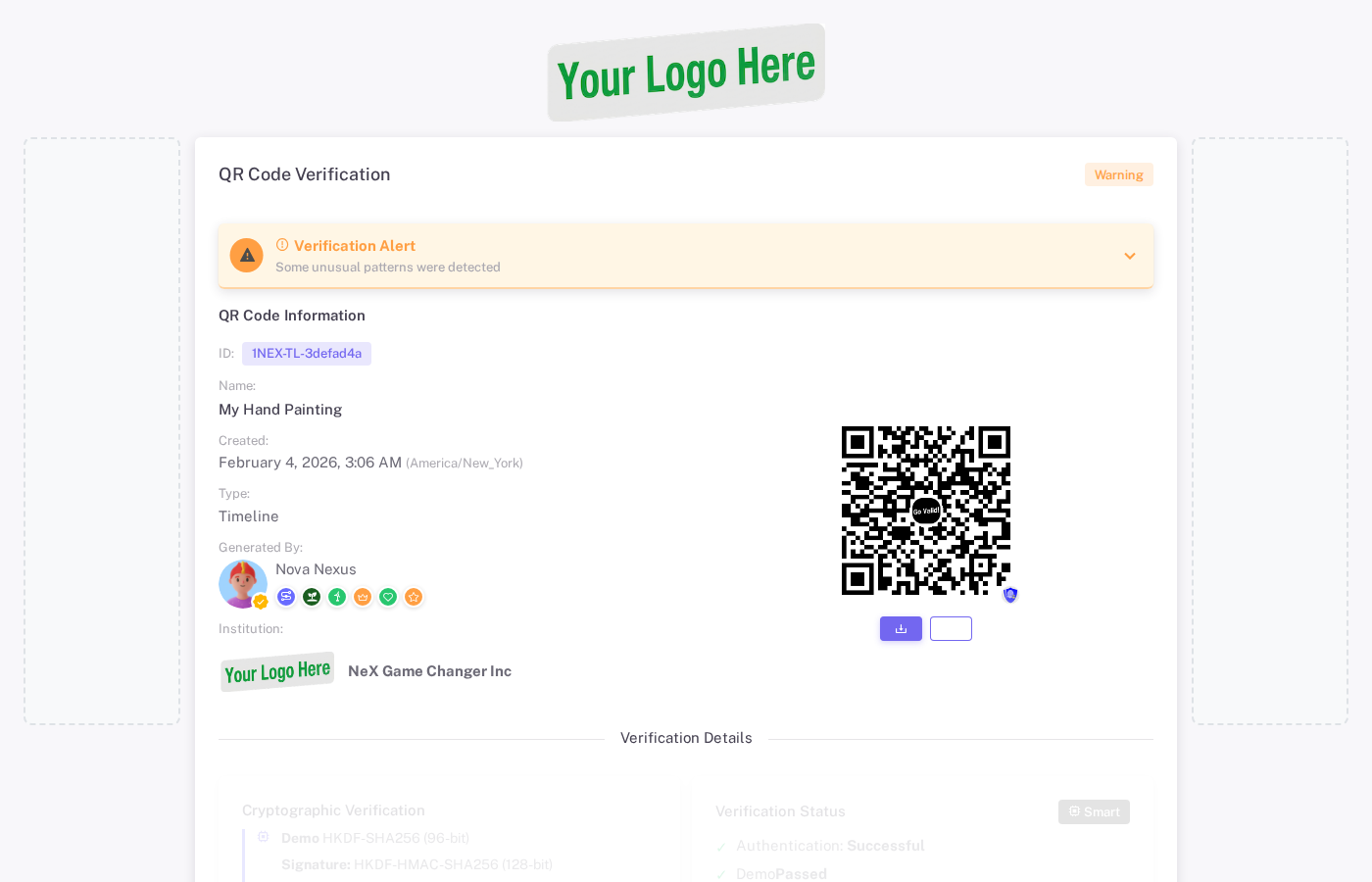
The verification page confirms QR authenticity with cryptographic checks, scan statistics, and issuer information.
See a live verification page example →
The verification page displays one of these status badges:
| Status | Meaning |
|---|---|
| Verified | QR code is authentic and content is accessible |
| Warning | QR code is valid but scanned from an unexpected location (anti-counterfeit) |
| Blocked | QR code flagged as counterfeit or invalid (anti-counterfeit) |
| Not Verified | QR code could not be validated |
Page Sections
QR Code Information
The verification page displays:
- QR Code ID: Unique identifier (formatted UUID)
- Name: Title of the QR code
- Created: Date and time of creation
- Type: Template type (Document, Certificate, Goods, Timeline, Custom)
- Generated By: Creator's name or institution
- Institution: Organization name and logo (if applicable)
- QR Code Image: Downloadable QR image with copy link button
Cryptographic Verification
Each security level shows different cryptographic details:
Smart QR
- Token generation: HKDF-SHA256 (96-bit)
- Signature: HKDF-HMAC-SHA256 (128-bit, v2) or HMAC-SHA256 (96-bit)
- QR data encryption: AES-256-GCM (NIST SP 800-38D)
- Attachment encryption: AES-256-GCM with managed keys, secure token
- Security standard: NIST 2030+ compliant (128-bit minimum, v2)
Secure QR
- Hash algorithm: SHA-256 (FIPS 180-4)
- Compact hash: HMAC-SHA256 (256-bit)
- QR data encryption: AES-256-GCM (NIST SP 800-38D)
- Metadata encryption: ChaCha20-Poly1305 (RFC 8439)
- Compression: zlib level 9
- Attachment encryption: AES-256-GCM with managed keys, secure token
Enterprise QR (Ed25519)
- Token generation: Base62 (128-bit)
- Digital signature: Ed25519 (256-bit, RFC 8032)
- Key ID: Displayed as badge
- Non-repudiation: Cryptographically verified
- Private key storage: AES-256-GCM with managed keys
- Verification fingerprint: Displayed with copy button
- Attachment encryption: AES-256-GCM with managed keys
Verification Status Panel
Shows real-time verification results:
- Authentication: Successful or Failed
- Token Verification: Passed or Failed
- Signature Verification: Passed or Failed (Secure/Enterprise)
- Metadata Verification: Passed or Failed (Secure)
- Encryption Verification: Passed or Failed (Enterprise)
- Enterprise Non-Repudiation: Verified with PIN authentication
- Digital Signer: Name of the signer (Enterprise)
- QR Code Status: Active or Removed (with removal date)
- Verification Time: Timestamp with timezone
- Origin: Where the verification came from
Scan Statistics
- Scan count:
#1, #2, #3... - Last scan time
- Unique cities count
- Unique devices count
- First verified location (city, country)
NexCommunity Trust Score
When the QR code is shared to the community, the verification page shows:
- Trust Votes: Number of positive votes
- Distrust Votes: Number of negative votes
- Trust Score: Percentage score
- Vote Buttons: Visitors can cast their own trust vote
Password Protection
If the QR code is password-protected, visitors will see:
- QR-Master Password: One password for all QR codes
- QR-Unique Password: Individual password per QR code
Content remains hidden until the correct password is entered.
Anti-Counterfeit Detection
The verification page includes anti-counterfeit features:
- First Scan Anchoring: Records the first scan location
- Location Mismatch Warning: Alerts if scanned from unexpected location
- Duplicate Detection: Flags suspicious scanning patterns
- Block Action: Can block access to suspected counterfeit codes
- Warning Action: Shows warning but allows access
Institution Branding
Institution accounts can customize the verification page:
- Institution logo in header (institution-only mode)
- Co-branding with GoValid logo (both mode)
- Default GoValid logo with "Authentication for Everyone" tagline
Timeline Entries
For Timeline QR codes, the verification page shows:
- Timeline of all events logged against the QR code
- Entry title, description, date/time, location
- Photos and file attachments
- Map view with GPS coordinates
- Tagged users (with privacy controls)
- "Add New Entry" button for authorized scanners
URL Format
Verification URLs follow this pattern:
https://govalid.org/v/{token}{signature}
- Token: Unique QR code identifier
- Signature: Cryptographic signature (for Secure and Enterprise QR)
Mobile Experience
The verification page is optimized for mobile devices:
- Responsive layout with three-column grid (desktop) or single column (mobile)
- Touch-friendly buttons
- Auto-detect GPS location (for timeline entries)
- Camera integration (for photo attachments)
- Mobile advertisement slots
Related
- QR Codes - Create and manage QR codes
- Security Levels - Understanding security tiers
- Anti-Counterfeit - Product authentication