QR Codes
Learn how to create, manage, and secure QR codes with GoValid.
Overview
GoValid provides a comprehensive QR code system accessible from multiple sources. Each source offers different QR types tailored to specific workflows.
QR Code Generation Sources
Web Dashboard (my.govalid.org)
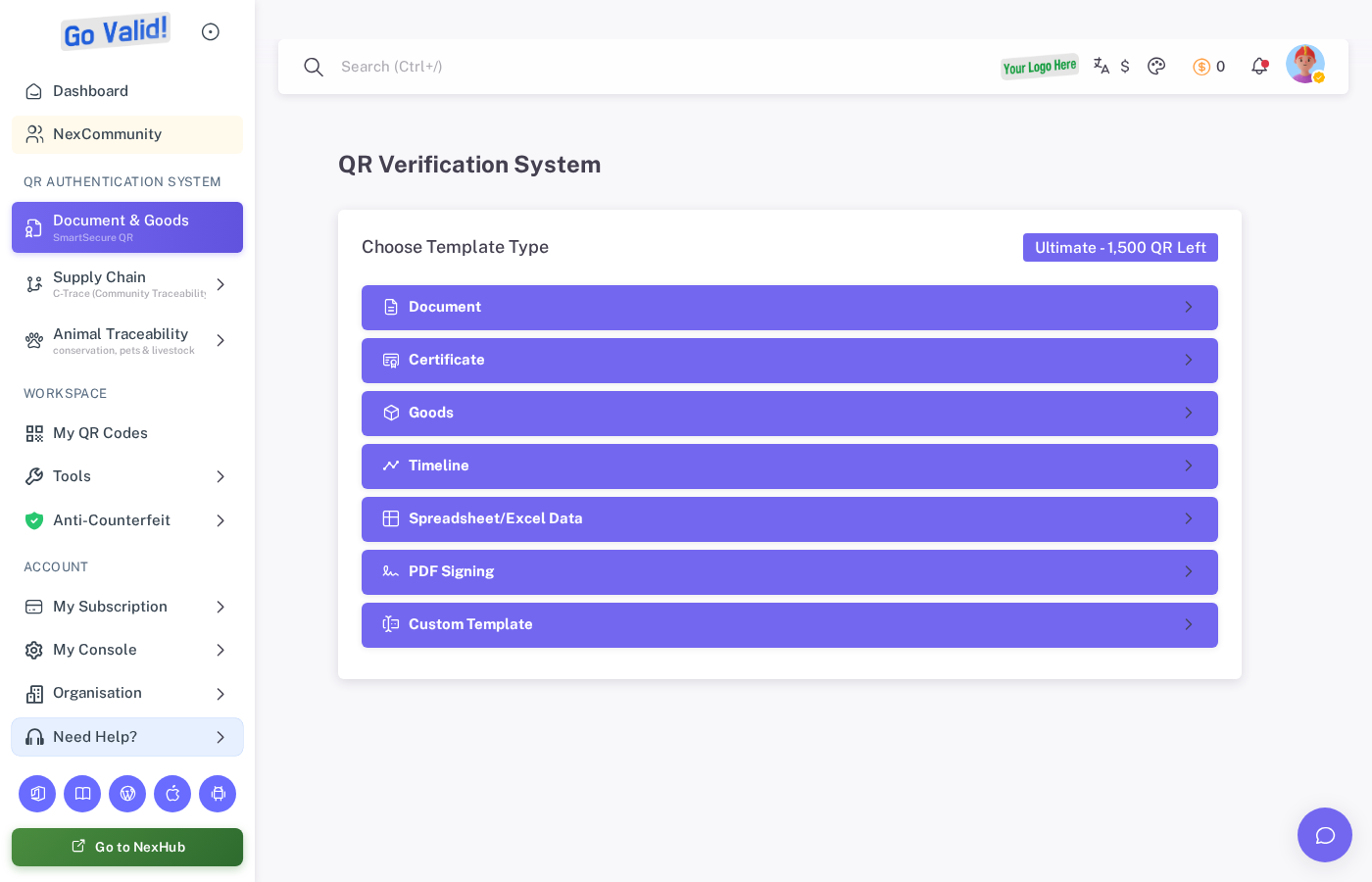
Document & Goods opens with template choices for document, certificate, goods, timeline, spreadsheet, PDF signing, and custom QR workflows.
Document & Goods (SmartSecure QR)
- Document - General document verification
- Certificate - Award and credential verification
- Goods - Product and asset tracking
- Timeline - Event history and milestones
- Spreadsheet - Bulk QR from spreadsheet data
- PDF Signing - Embed QR directly into PDFs
- Custom Template - Build your own form
- My Assigned Tasks - View and manage traceability tasks
- Traceability Dashboard - Monitor supply chain progress
- Scan & Update - Log supply chain steps
- PreBatches - Farmer logs and collector forms
- My Animals - Register animals with RFID tags
- Bulk Registration - Upload spreadsheets for mass registration
- Pending Approvals - Review and approve events
- Detection Profiles - Create brand protection profiles
- Assignments - Assign QR codes to products
- Violation Logs - Monitor counterfeit detections
- Reports - Generate anti-counterfeit reports
Office Apps
- Word - Insert QR codes, PDF stamping
- Excel - Bulk QR generation from spreadsheets
- PowerPoint - Insert QR codes into presentations
- OJS Plugin - Academic journal QR authentication
- WordPress Plugin - Website QR authentication
Mobile App
- Scan & Create QR - Generate QR codes on the go
- Timeline Entries - Add events by scanning QR codes
- C-Trace Updates - Log supply chain steps in the field
- Animal Tracking - Register and track animals via RFID
Security Levels
| Level | Name | Encryption | QR Code Size |
|---|---|---|---|
| 1 | Smart QR | 96-bit | Smallest (Ultra-compact) |
| 2 | Secure QR | 256-bit | Balanced (Medium) |
| 3 | Enterprise QR | Ed25519 + Non-Repudiation | Largest (Maximum security) |
See Security Levels for detailed comparison.
QR ID Format
Every QR code has a unique formatted ID that identifies its source, owner, and type. This ID appears on the verification page and in exports.
Format Structure
{SOURCE}{USER}-{TYPE}-{UUID}
| Part | Length | Description |
|---|---|---|
| SOURCE | 1 digit | How the QR code was generated |
| USER | 3 letters | First 3 letters of username or institution name |
| TYPE | 2 letters | QR code template type |
| UUID | 8 chars | Short version of the unique identifier |
Source Codes
| Code | Source |
|---|---|
| 0 | Unknown |
| 1 | Web Dashboard |
| 2 | Mobile App |
| 3 | Excel Add-in |
| 4 | Word Add-in |
| 5 | PowerPoint Add-in |
| 6 | OJS Plugin |
| 7 | API |
| 8 | WordPress Plugin |
| 9 | Bulk Upload |
Type Codes
| Code | Type |
|---|---|
| DO | Document |
| CE | Certificate |
| GO | Goods |
| TL | Timeline |
| CS | Custom |
| TR | C-Trace (Supply Chain) |
| AN | Animal |
| QR | Instant QR |
Examples
| QR ID | Meaning |
|---|---|
1GOV-DO-abc12345 | Web-generated Document QR by user "GOV..." |
3ABC-GO-def67890 | Excel-generated Goods QR by user "ABC..." |
7XYZ-TL-ghi11111 | API-generated Timeline QR by user "XYZ..." |
2INS-AN-jkl22222 | Mobile-generated Animal QR by institution "INS..." |
Key Features
Password Protection
- QR-Master Password: One password for all QR codes
- QR-Unique Password: Individual password per QR code
QR Transfer (SmartHandover)
Transfer ownership of QR codes between users with approval workflow. Manage transfers at Smart Handover.
Bulk Generation
Create hundreds of QR codes at once via:
- Spreadsheet upload
- API bulk endpoint
- Office Add-in (Excel)
Analytics
Track QR code performance at History & Analytics:
- Total scans and unique scans
- Scan timeline (daily, weekly, monthly)
- AI fraud detection and suspicious scan alerts
- Device type breakdown
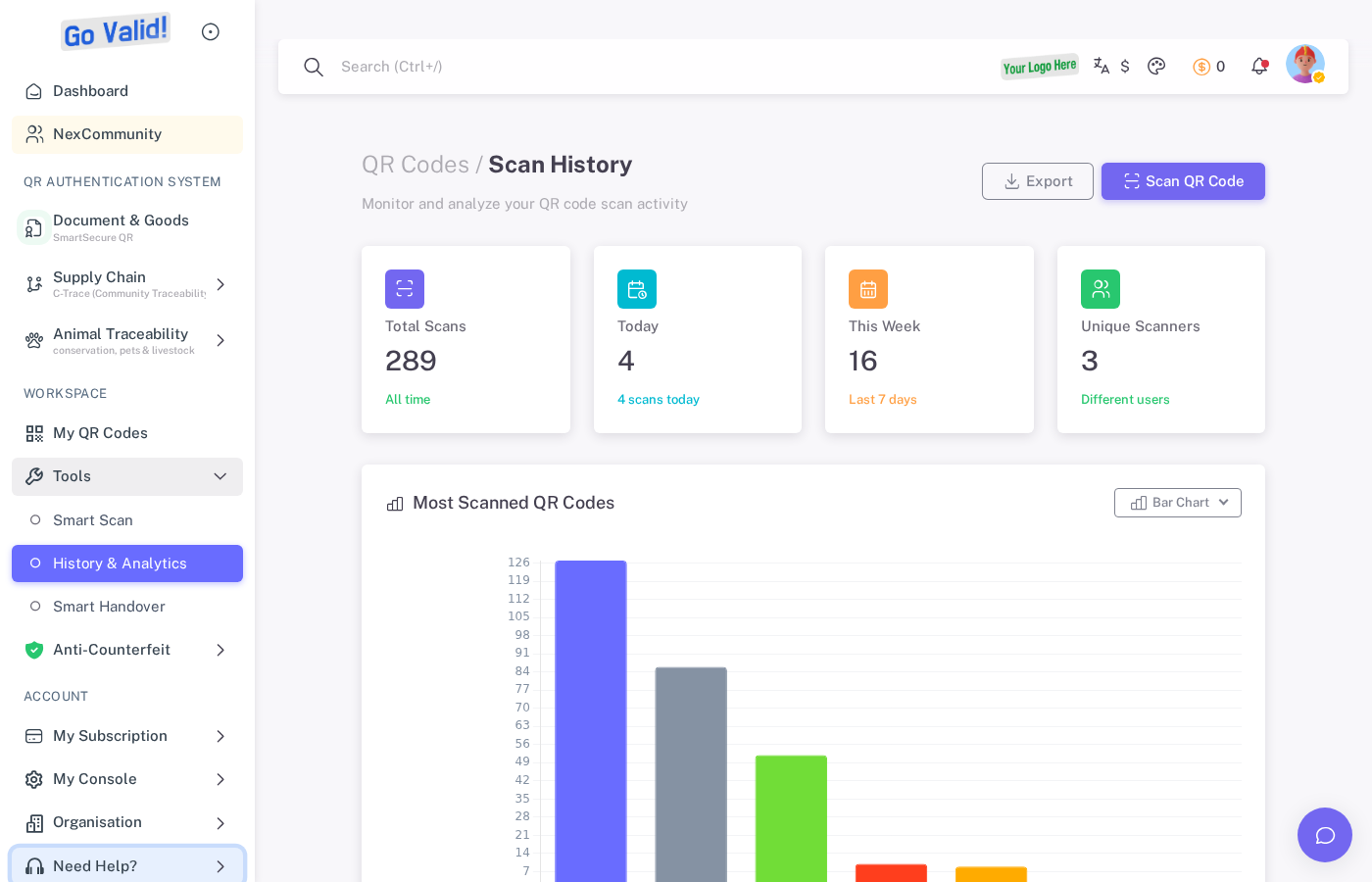
Scan history shows total scans, unique scans, timeline charts, and top locations for each QR code.
Analytics Overview
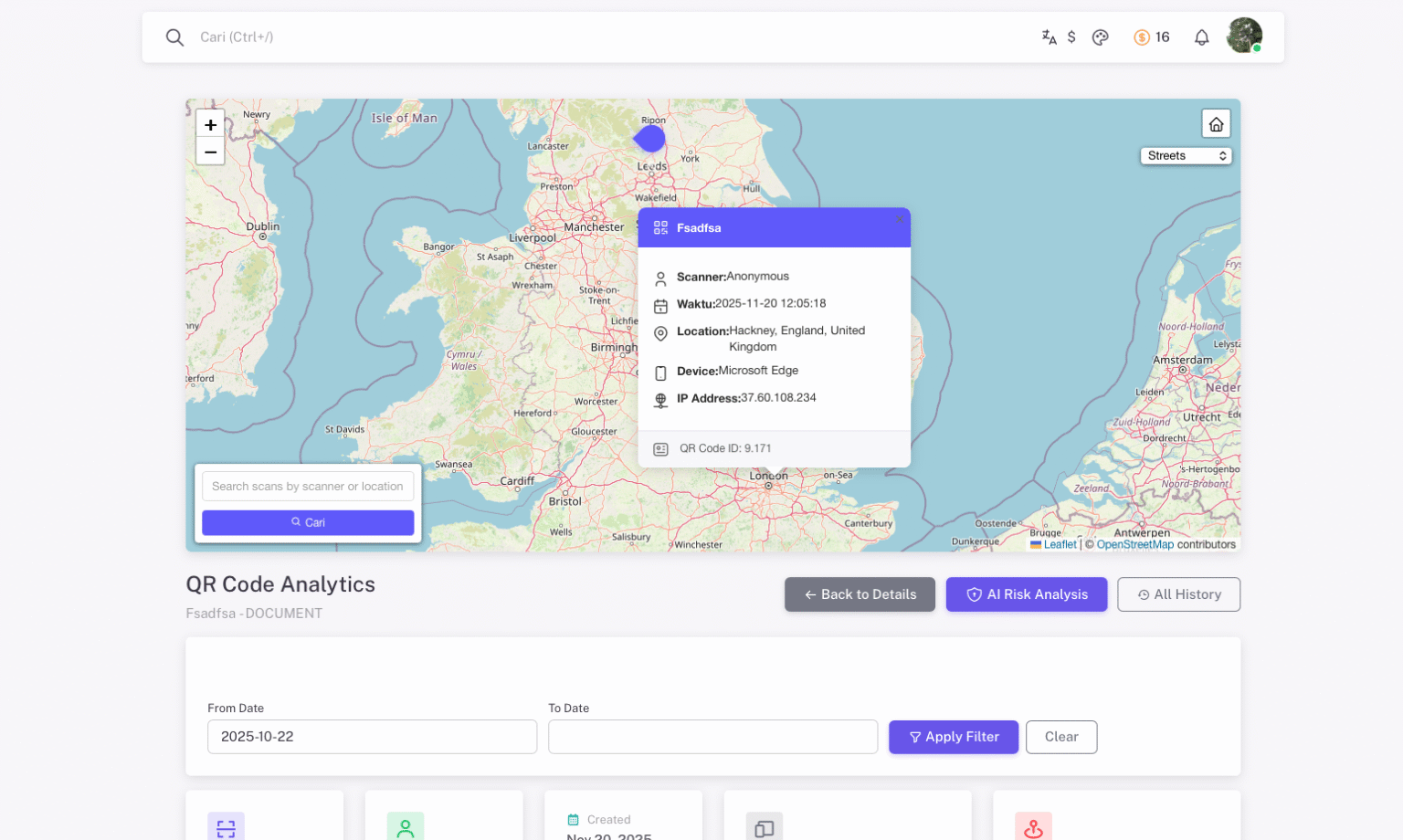
The analytics overview provides a summary of total scans, unique scans, and key metrics for your QR codes.
Scan Timeline
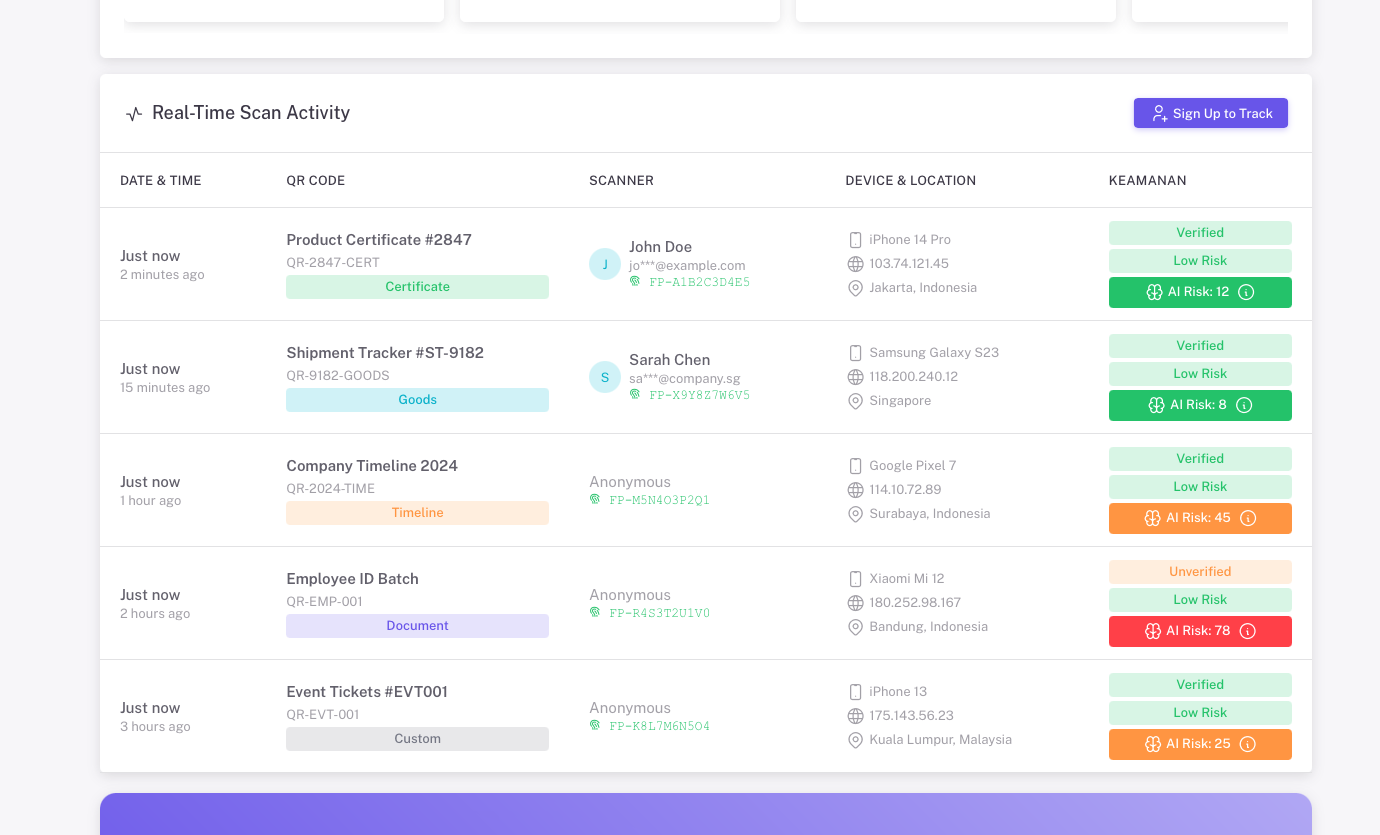
The scan timeline visualizes scan activity over time with daily, weekly, and monthly breakdowns.
AI Fraud Detection
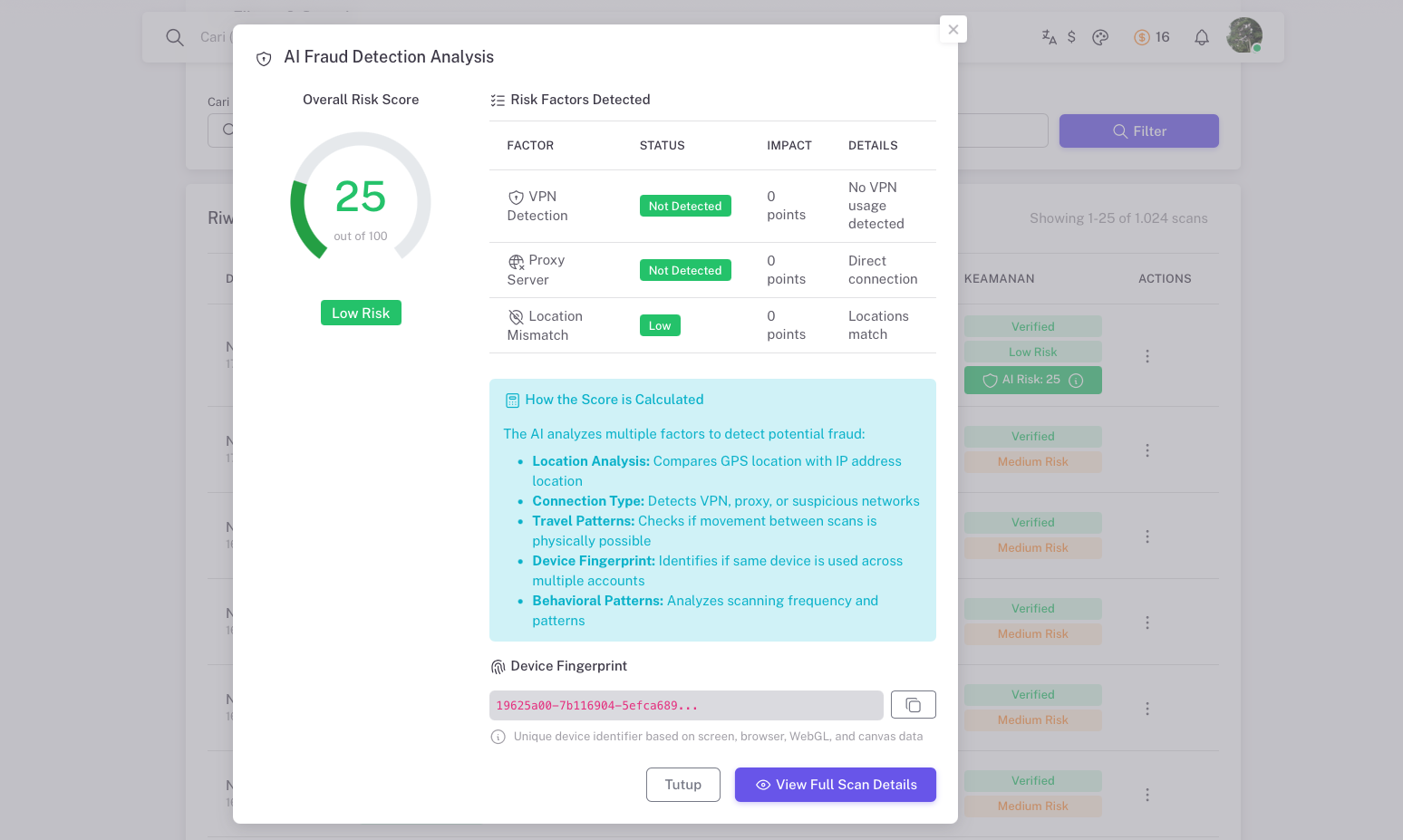
AI-powered fraud detection analytics flag suspicious scan patterns, duplicate scans, and potential counterfeit activity.
Managing QR Codes
View and manage all your generated QR codes at My QR Codes:
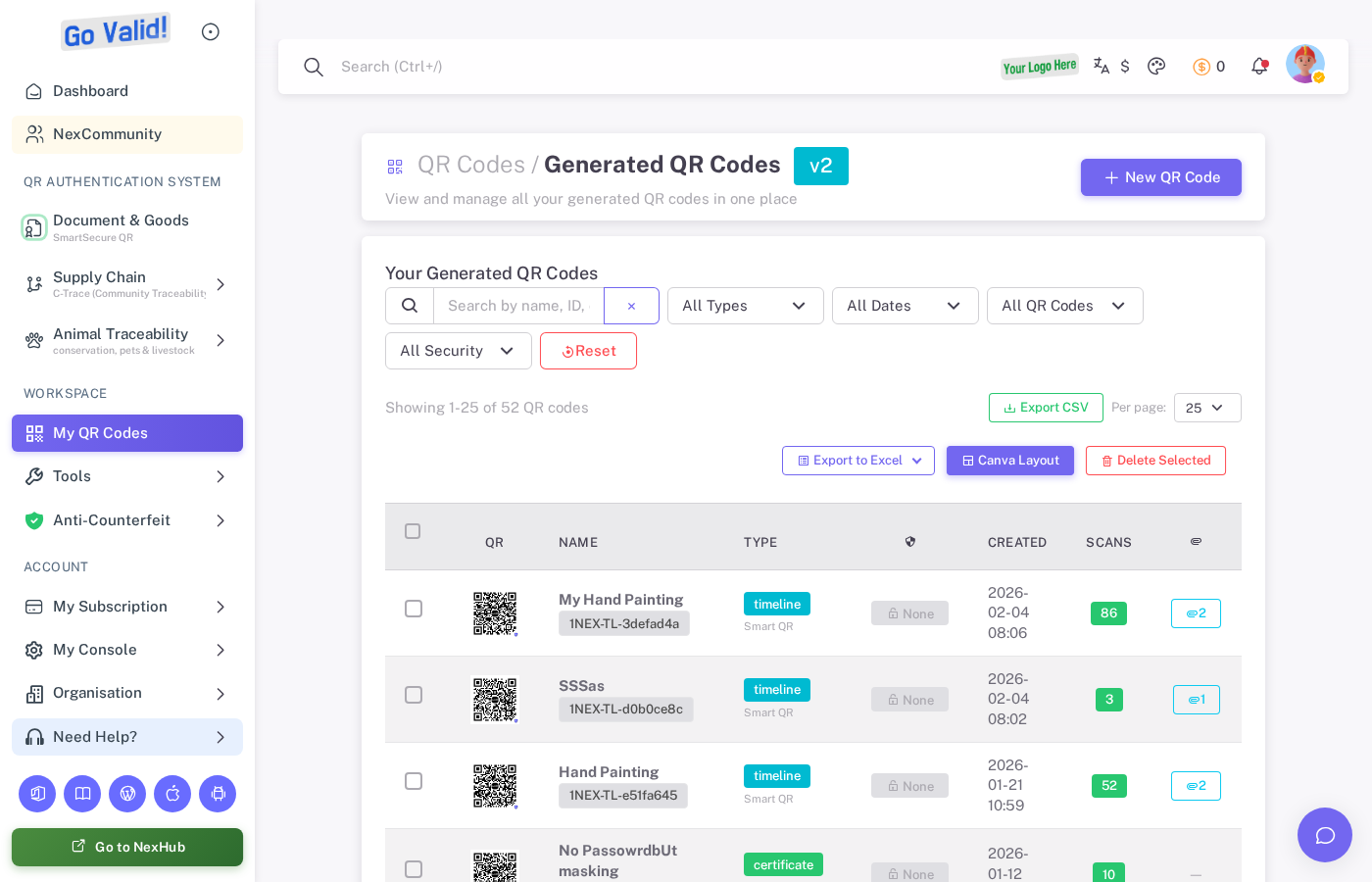
My QR Codes shows all generated codes with scan counts, creation dates, and options to edit, download, or delete.
Scheduled Removal
Set QR codes to automatically expire or become inactive at a specified date.
Anti-Counterfeit
- First scan anchoring
- Unique city/device counters
- Duplicate scan detection
Getting Started
- Log in to my.govalid.org
- Click Document & Goods to create template-based QR codes
- Fill in the required fields
- Select security level
- Generate and download
API Access
QR codes can be created and managed via the REST API:
curl -X POST https://api.govalid.org/api/v1/qr/ \
  -H "Authorization: Bearer YOUR_API_KEY" \
  -H "Content-Type: application/json" \
  -d '{
    "title": "My Document",
    "qr_type": "document",
    "security_level": "smart"
  }'
Interactive API Documentation:
- Swagger UI - Try API endpoints directly
- ReDoc - Full API reference
See API Reference for detailed endpoint documentation.
Related
- Security Levels - Understand the 3 security tiers
- Verification Page - What users see when scanning
- API Quick Start - Create QR codes via API
- Office Add-in - Generate QR codes in Microsoft Office