Guest Book Block
Replace the paper guest book with a block on your NexHub page. Visitors scan your hub QR code or open your hub link, then leave a message, a star rating, a photo and a signature.
:::info Guest Book is now a hub block Guest Book used to be a separate Instant QR type. It now lives inside a NexHub page as a block, so one QR code and one link can hold your guest book together with check-in, feedback, links and any other block. :::
Before you start
- A NexHub account. Sign up at nexhub.earth.
- A hub. Create one at nexhub.earth/i/ or pick a design from Template NexHub. See Create NexHub.
Step 1: Add the Guest Book block
- Open your hub in the editor and expand Hub Blocks.
- Click + Add Block.
- Under Community, choose Guest Book.
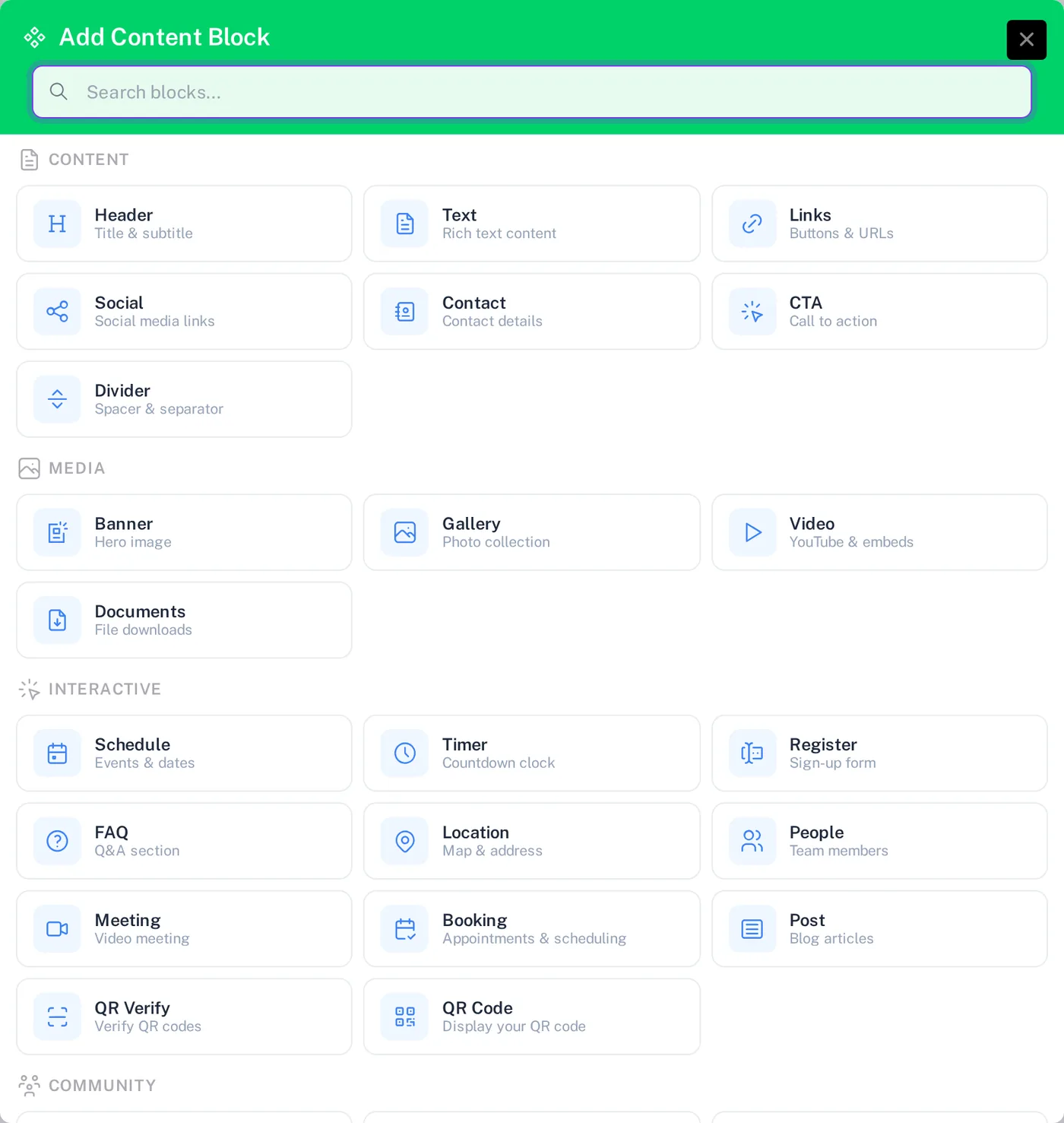
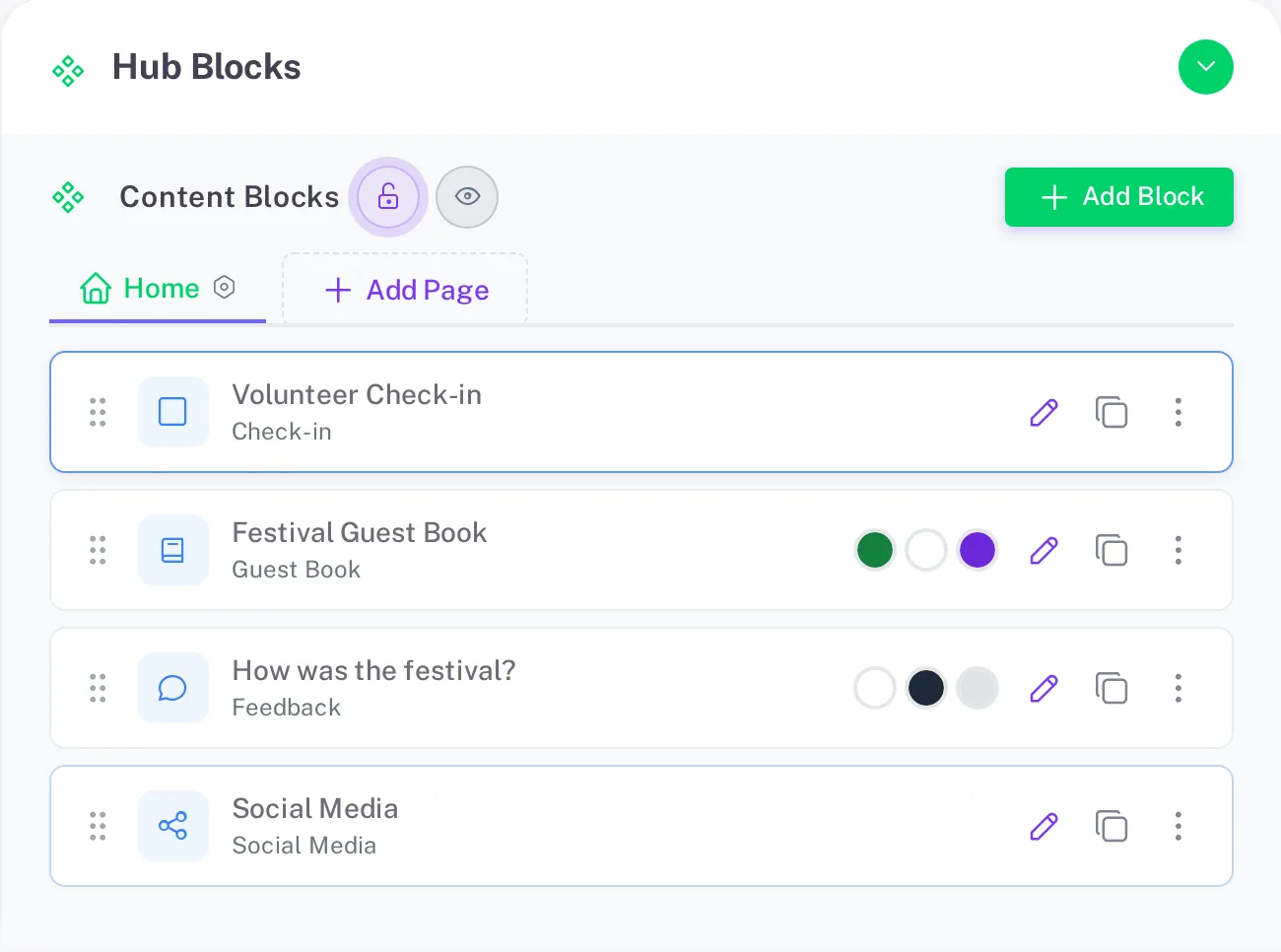
The block appears in your block list. Drag it by the handle to change its position on the page.
Step 2: Configure the block
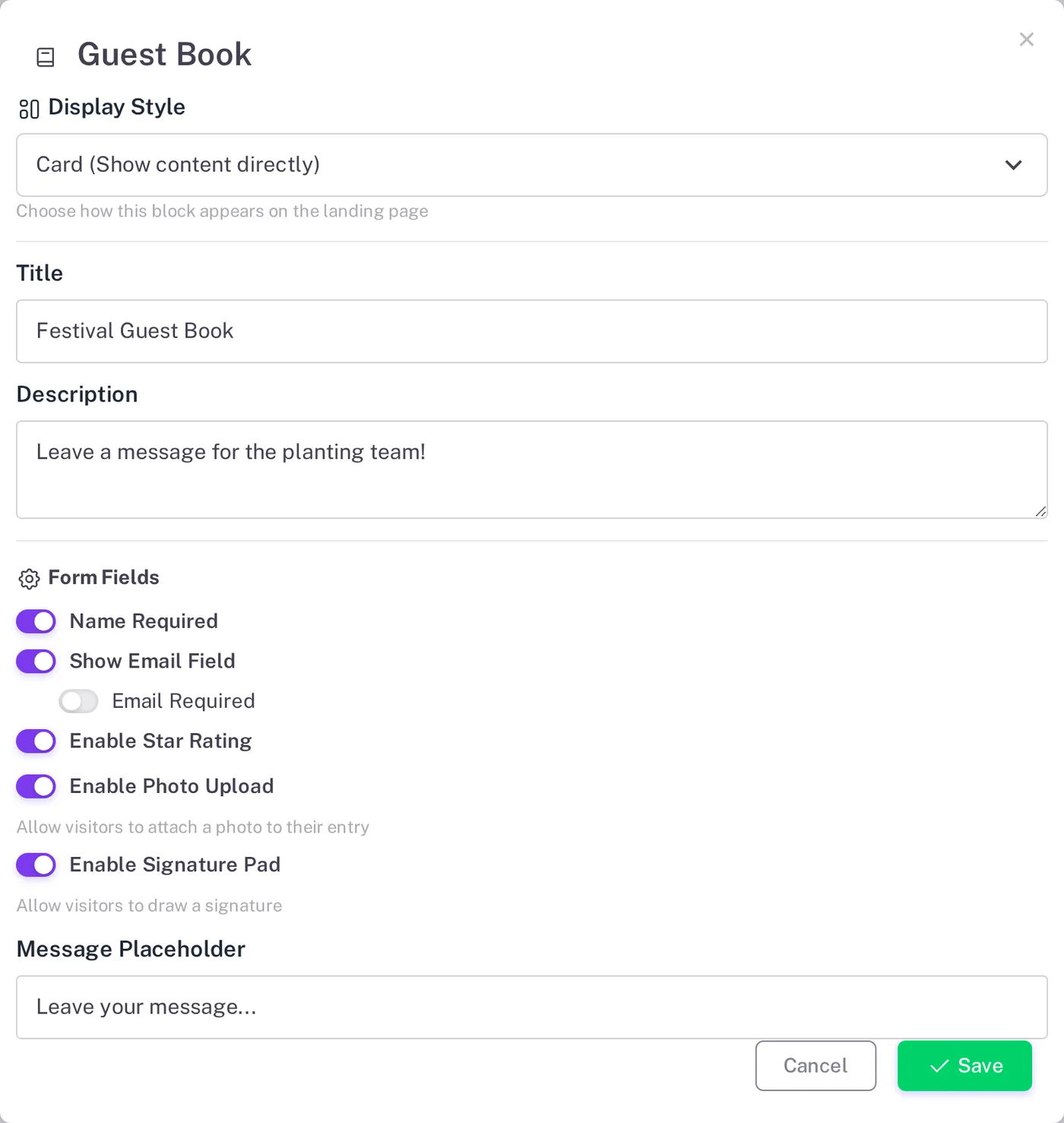
Click the pencil icon on the block to open its settings.
| Setting | What it does |
|---|---|
| Display Style | Card shows the form directly on the page. Other styles show a button that opens it. |
| Title / Description | Heading and short invitation shown above the form. |
| Name Required | Visitors must enter their name. |
| Show Email Field / Email Required | Ask for an email address, optionally as a required field. |
| Enable Star Rating | Adds a 1 to 5 star rating. |
| Enable Photo Upload | Visitors can attach a photo from their gallery or camera. |
| Enable Signature Pad | Visitors draw a signature with a finger or mouse. |
| Message Placeholder | Hint text inside the message box. |
| Button Text / Success Message | Label of the submit button and the thank-you text shown after signing. |
| Show Entries | Shows recent entries below the form, up to the number you set. |
Click Save, then Generate NexHub Page (or Update when editing an existing hub).
Step 3: Share your hub
After publishing, the hub page gives you:
- A QR code to download as PNG or print. Place it at the entrance, on tables or on invitations.
- A link such as
nexhub.earth/your-slugto share in chats and social media.
What visitors see
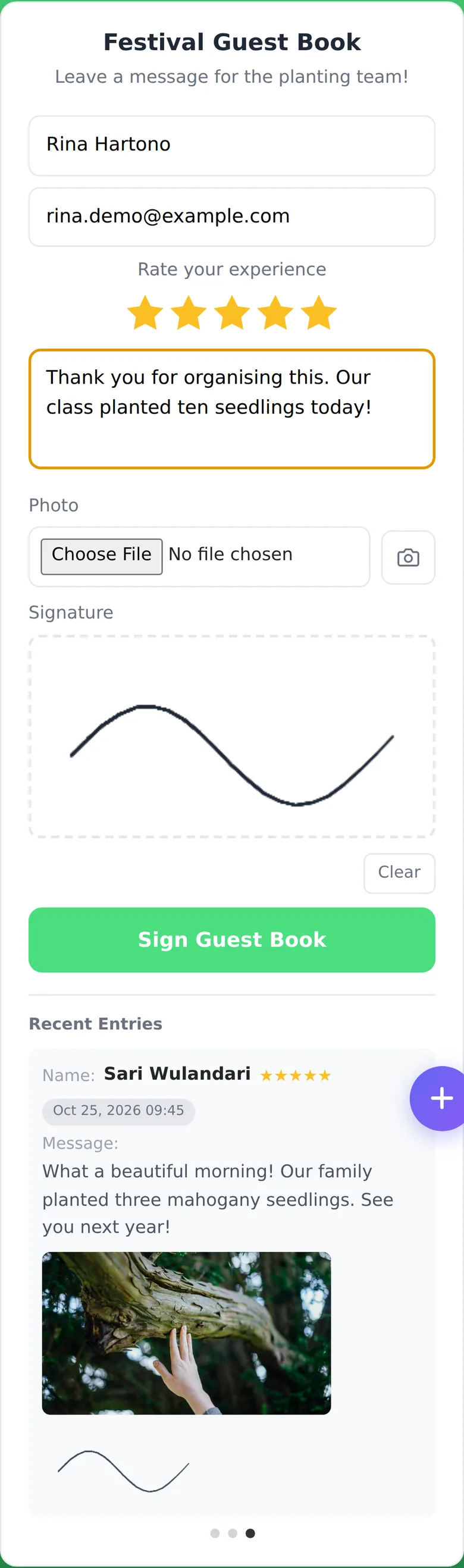
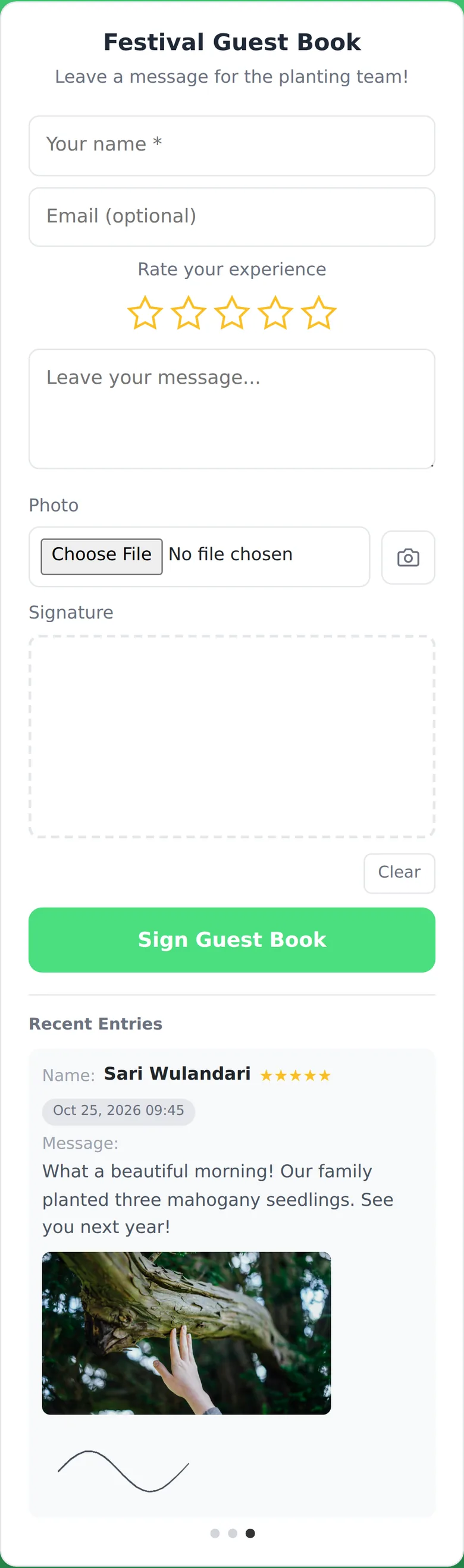
Visitors open the hub on their phone, fill in the form and tap Sign Guest Book. If Show Entries is on, recent messages, photos and signatures appear under the form.
Step 4: Review entries
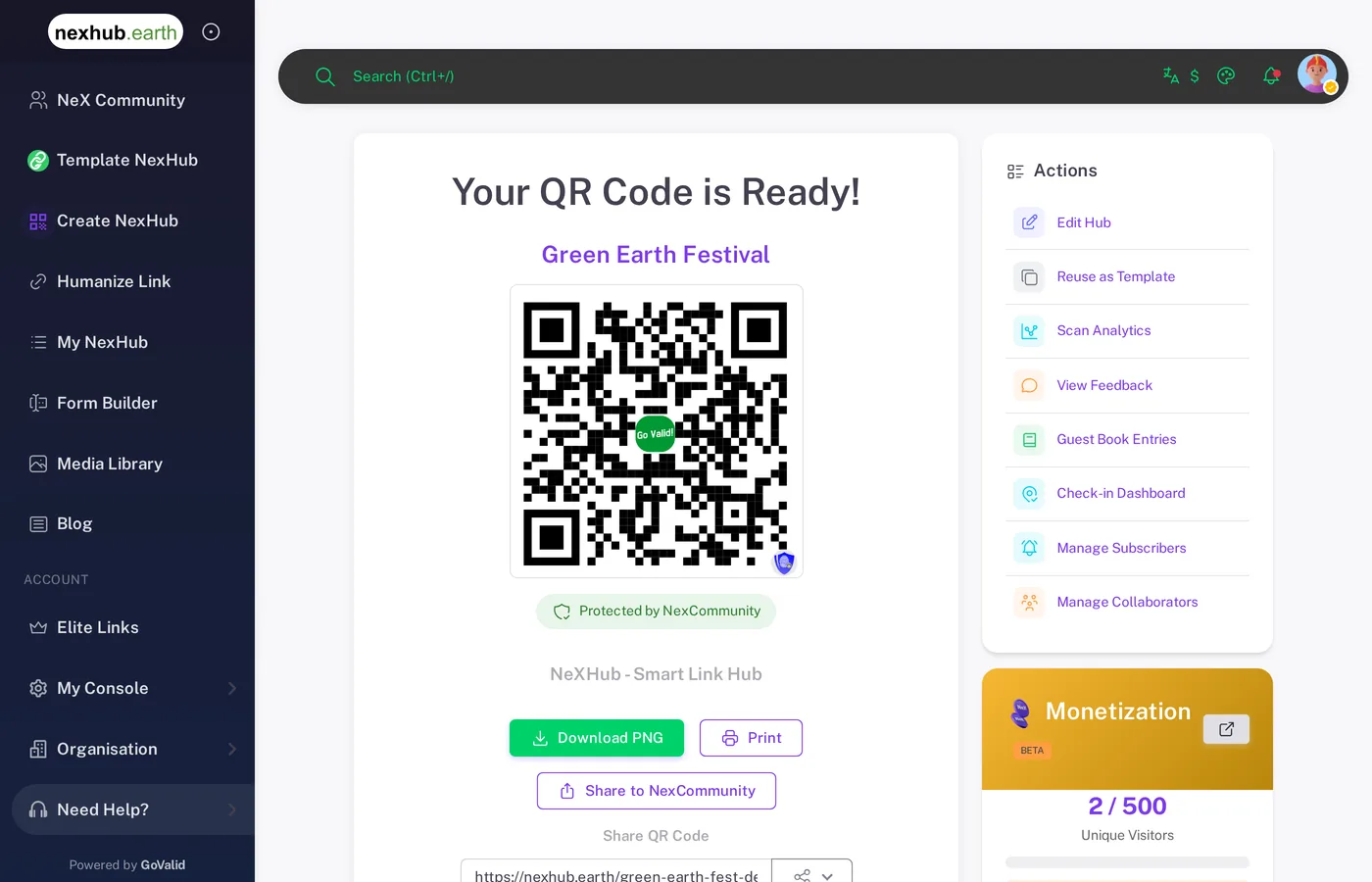
Open My NexHub, select your hub, and click Guest Book Entries in the Actions panel.
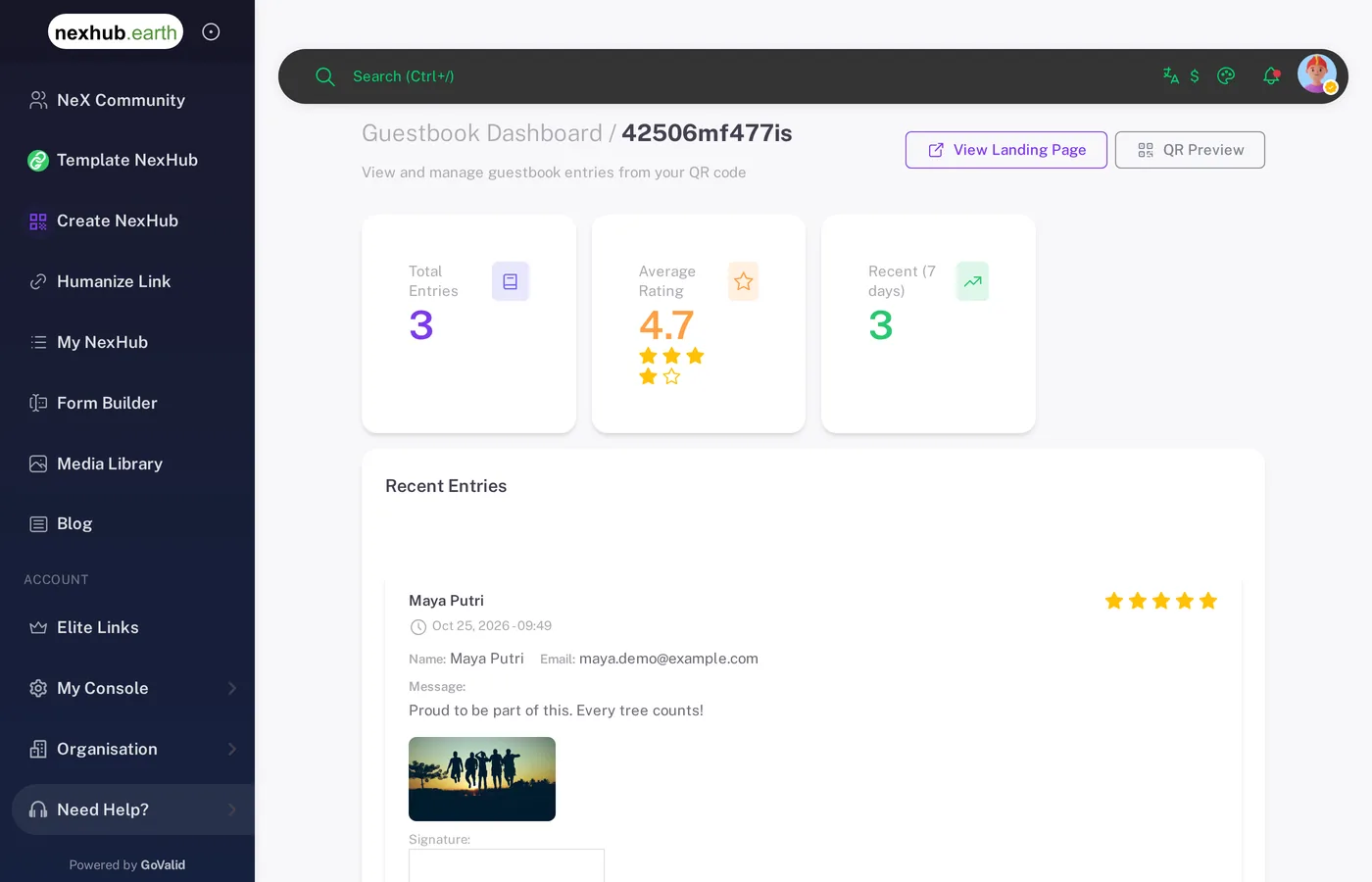
The Guestbook Dashboard shows:
- Total Entries, Average Rating and Recent (7 days)
- Recent Entries with the visitor's name, email, message, photo and signature
Ideas
| Use case | Tip |
|---|---|
| Weddings | Turn on photos and signatures, and show entries so guests can read each other's wishes. |
| Exhibitions and museums | Turn on star ratings to measure visitor satisfaction. |
| Hotels and venues | Keep Show Entries off if messages should stay private to you. |
| Memorials | Turn off ratings and keep the message box as the main field. |
| Community events | Combine with the Check-in and Feedback blocks on the same hub. |