Check-in Block
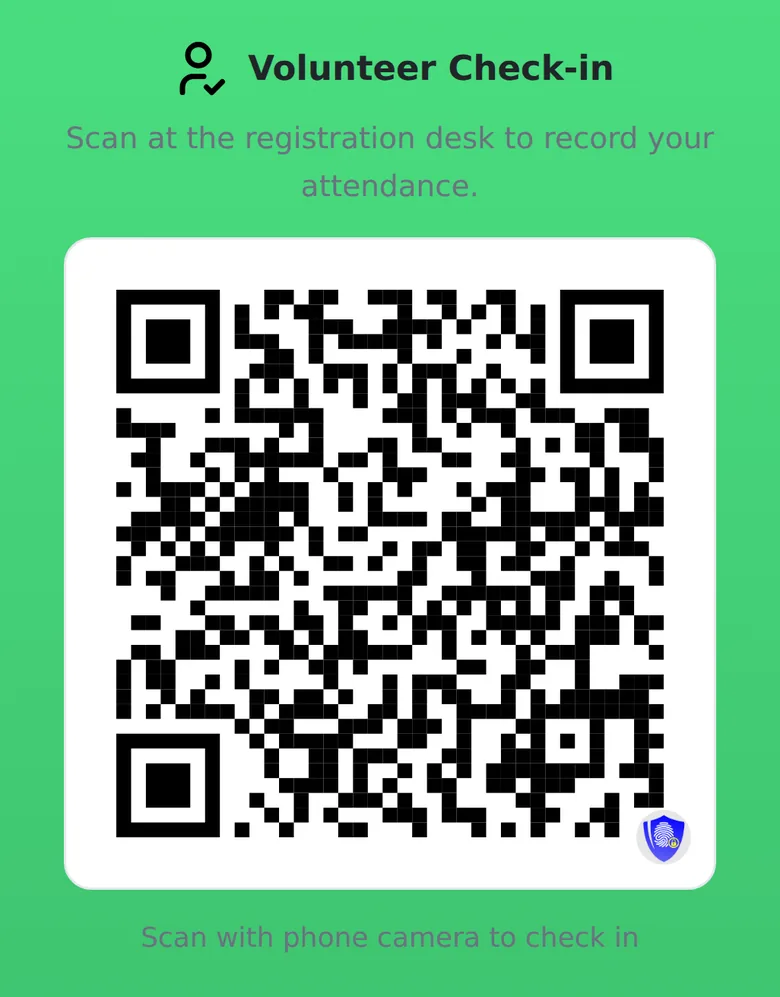
Record attendance for events, classes, shifts or visits. The Check-in block shows a QR code on your NexHub page. Participants scan it with their phone camera, fill in a short form and are checked in.
:::info Check-in inside a hub You can still create a standalone Check-in QR from nexhub.earth/i/. Adding Check-in as a hub block lets the same page also carry your agenda, guest book, feedback form and links. :::
Before you start
- A NexHub account. Sign up at nexhub.earth.
- A hub. Create one at nexhub.earth/i/. See Create NexHub.
Step 1: Add the Check-in block
- Open your hub in the editor and expand Hub Blocks.
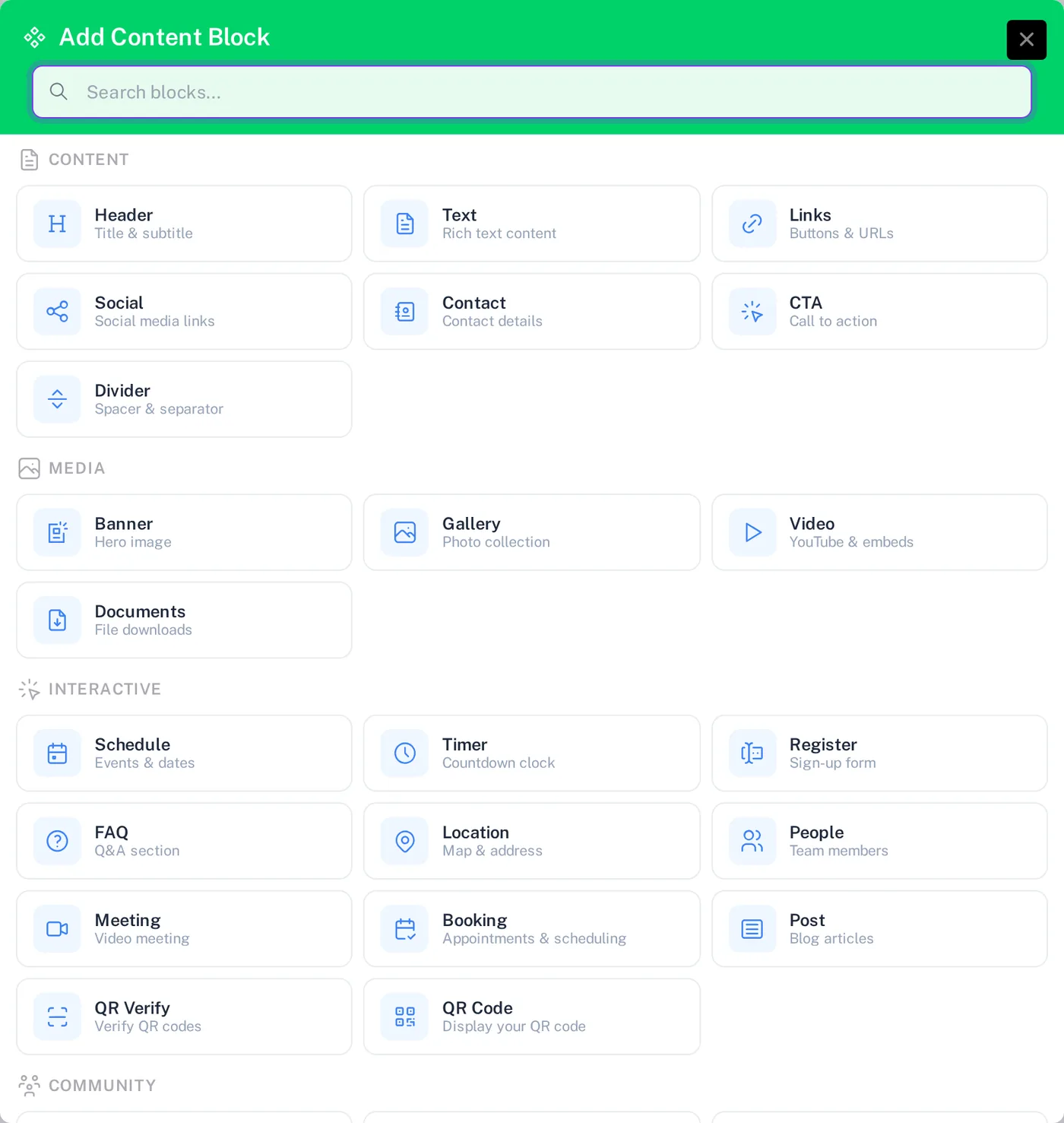
- Click + Add Block.
- Under Community, choose Check-in.
Step 2: Configure the block
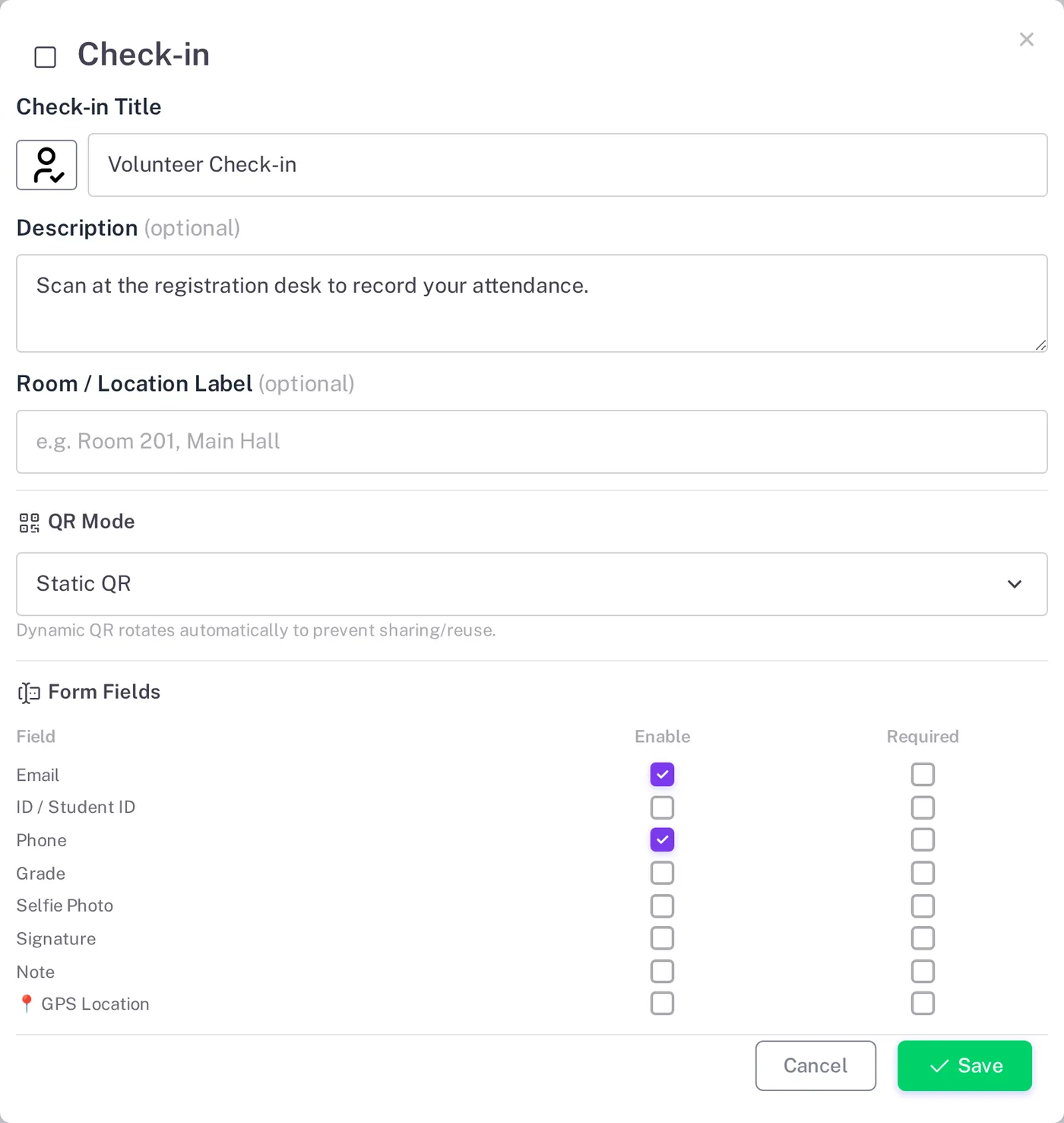
Click the pencil icon on the block to open its settings.
Title and description
| Setting | What it does |
|---|---|
| Check-in Title | Heading shown above the QR code. The button next to it sets the block icon. |
| Description | Short instruction, for example Scan at the registration desk. |
| Room / Location Label | Optional label such as Room 201 or Main Hall. |
QR mode
| Mode | When to use |
|---|---|
| Static QR | The QR code never changes. Simple to print and place at a desk or door. |
| Dynamic QR | The QR code rotates automatically, so a photo of it shared in a chat stops working. Set the Rotation Interval (30 to 600 seconds, default 60) and the Submission Window (how long a scanned code stays valid, recommended 2.5 times the interval). Show the hub on a screen or projector. |
Form fields
Name is always collected. Each of these fields can be enabled and, when enabled, made required:
Email, ID / Student ID, Phone, Grade, Selfie Photo, Signature, Note and GPS Location.
Location check
Turn on the location check to compare where each participant checks in with a point you choose:
- Click the map or drag the pin to the venue, or use My Location.
- Set the maximum distance in meters.
- Keep auto flag on to mark check-ins outside that distance as flagged in the dashboard.
Click Save, then Generate NexHub Page (or Update when editing an existing hub).
What participants see
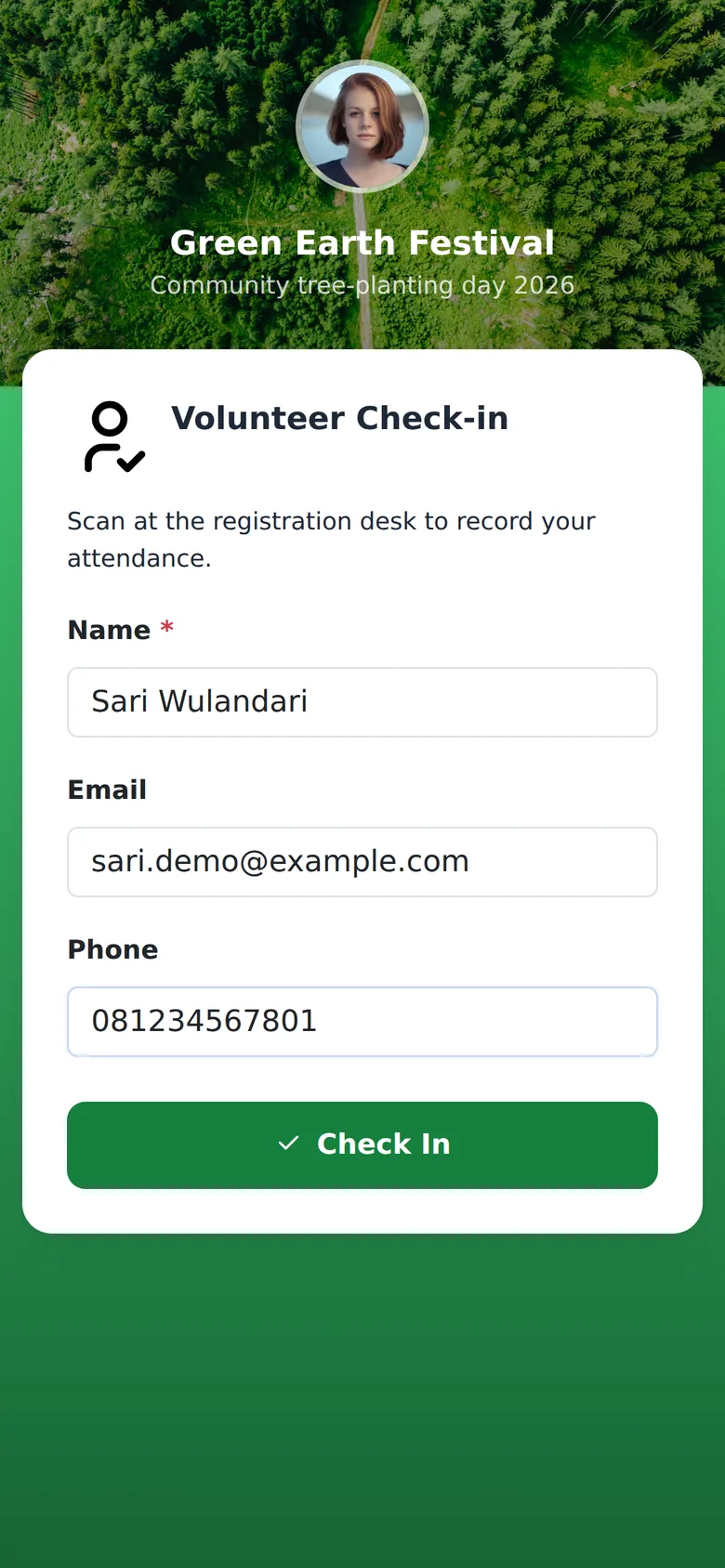
The hub shows the check-in QR. Participants scan it, fill in the form and tap Check In.
Step 3: Monitor attendance
Open My NexHub, select your hub, and click Check-in Dashboard in the Actions panel.
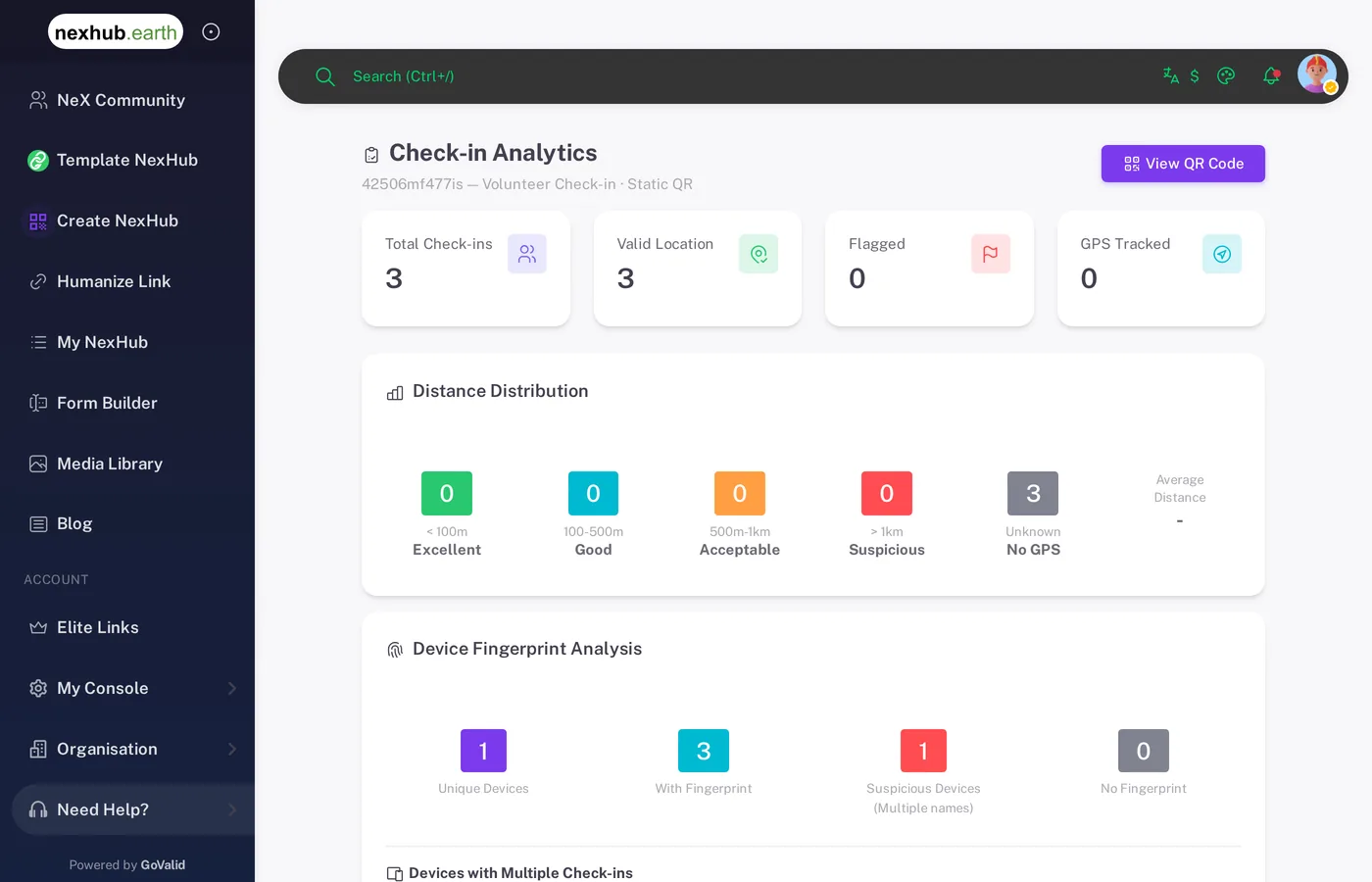
The dashboard includes:
- Total Check-ins, Valid Location, Flagged and GPS Tracked
- Distance Distribution from Excellent (under 100 m) to Suspicious (over 1 km)
- Device Fingerprint Analysis, which highlights devices used with several different names
- Check-ins Over Time and Hourly Distribution
- The full list of check-ins, with Export CSV, Export Excel and delete
Ideas
| Use case | Tip |
|---|---|
| Classes and training | Use Dynamic QR on the projector and require ID / Student ID. |
| Field staff and shifts | Turn on the location check with a tight distance and Selfie Photo. |
| Events and volunteers | Use Static QR at the registration desk, and add a Guest Book and Feedback block to the same hub. |
| Visitor logs | Enable Phone and Note for the purpose of the visit. |