Feedback Block
Collect ratings and comments from customers, guests or participants directly on your NexHub page. Visitors rate with stars, write a comment and submit in a few seconds, with no app and no login.
:::info Feedback is now a hub block Feedback used to be a separate Instant QR type. It now lives inside a NexHub page as a block, so your feedback form sits next to your links, menu, guest book or any other block under one QR code. :::
Before you start
- A NexHub account. Sign up at nexhub.earth.
- A hub. Create one at nexhub.earth/i/. See Create NexHub.
Step 1: Add the Feedback block
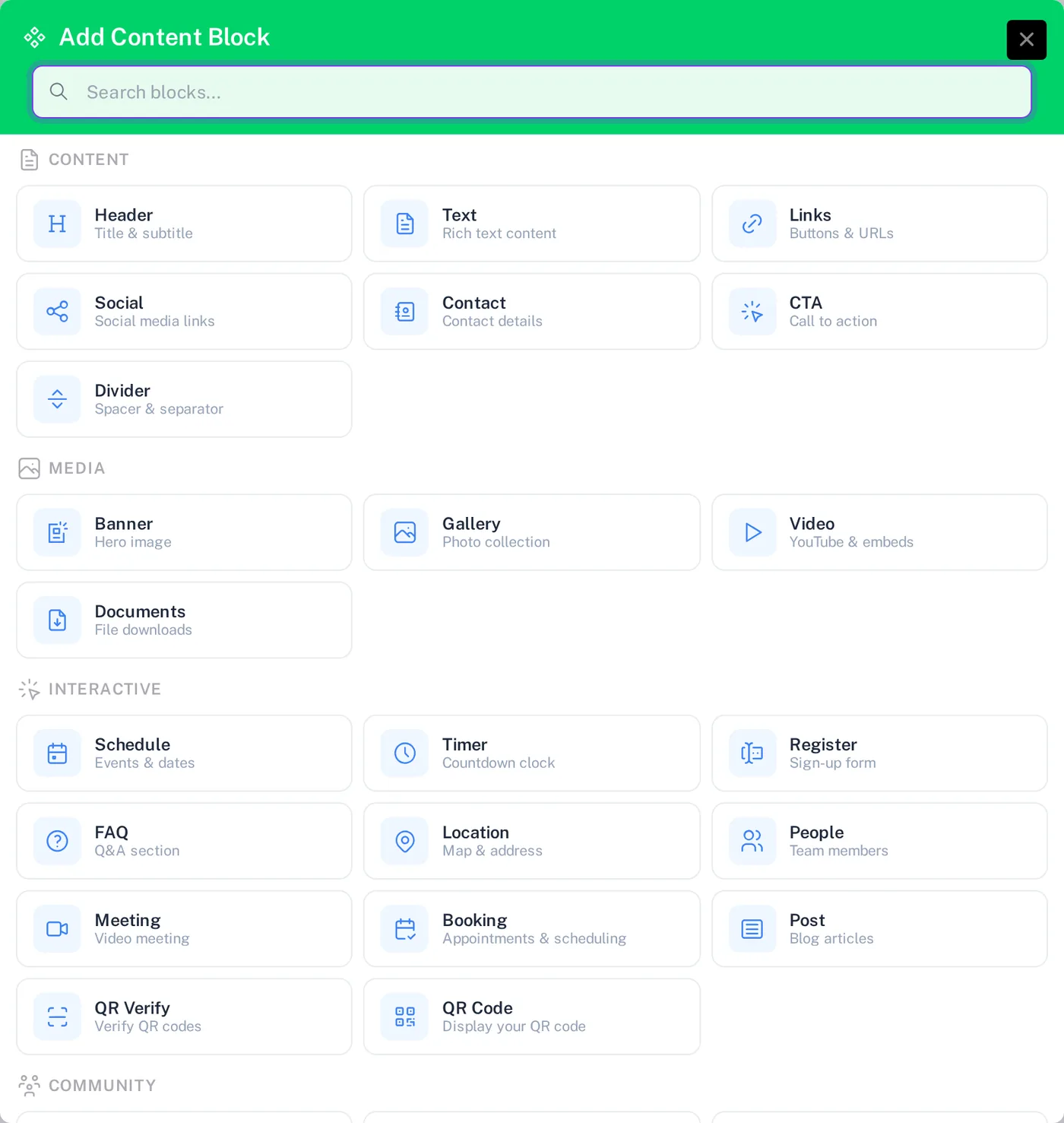
- Open your hub in the editor and expand Hub Blocks.
- Click + Add Block.
- Under Community, choose Feedback.
Step 2: Configure the block
Click the pencil icon on the block to open its settings.
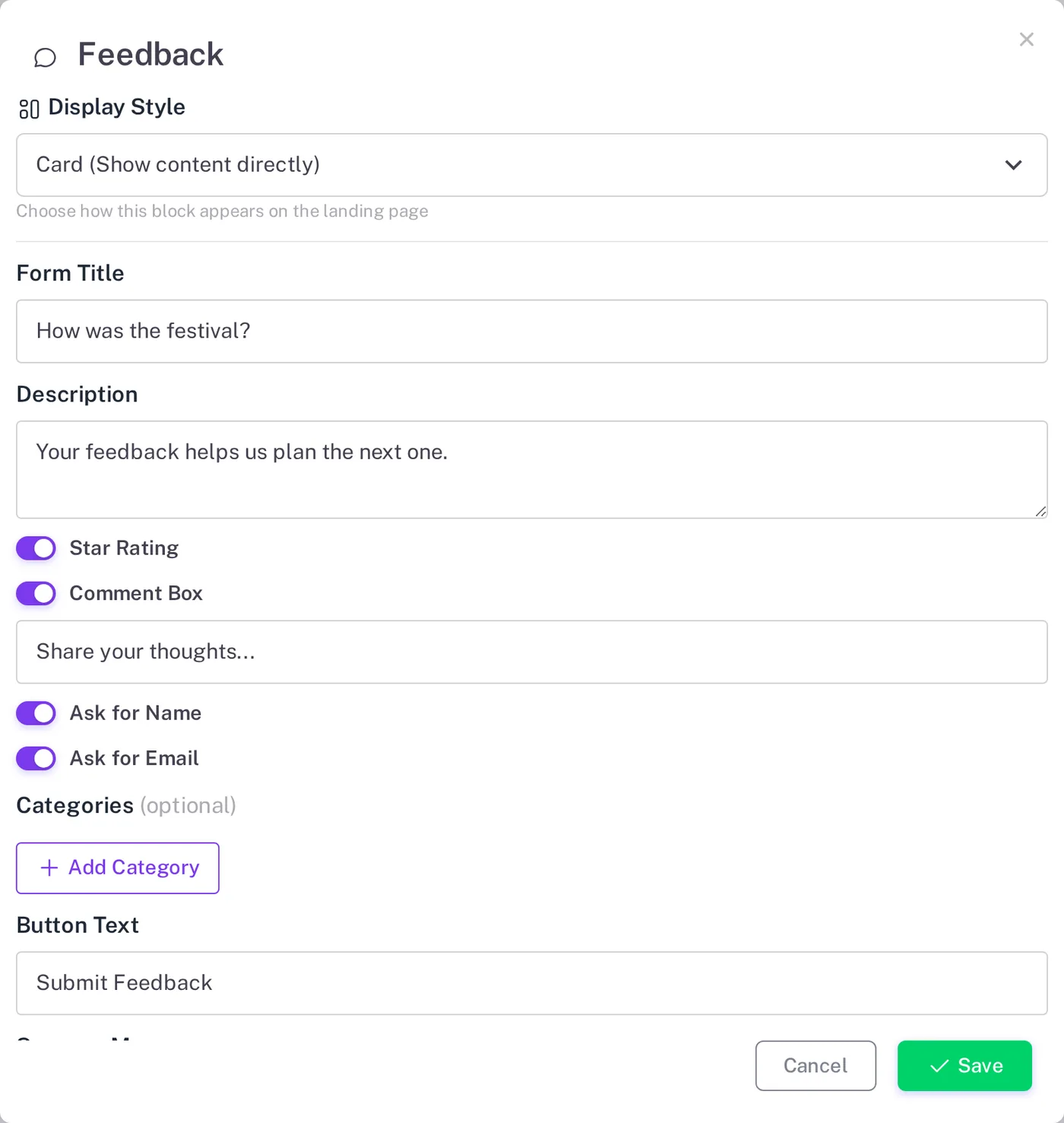
| Setting | What it does |
|---|---|
| Display Style | Card shows the form directly on the page. Other styles show a button that opens it. |
| Form Title / Description | The question you ask and a short line of context. |
| Star Rating | Adds a 1 to 5 star rating. |
| Comment Box | Adds a free-text comment field with your own placeholder text. |
| Ask for Name / Ask for Email | Optional contact fields, useful when you want to follow up. |
| Categories | Optional topics visitors can pick, such as Service, Food or Cleanliness. |
| Button Text / Success Message | Label of the submit button and the thank-you text shown afterwards. |
Click Save, then Generate NexHub Page (or Update when editing an existing hub).
Step 3: Share your hub
Download or print the hub QR code and place it where people finish their experience: on the table, at the exit, on receipts or on the last slide of a presentation. You can also share the hub link directly.
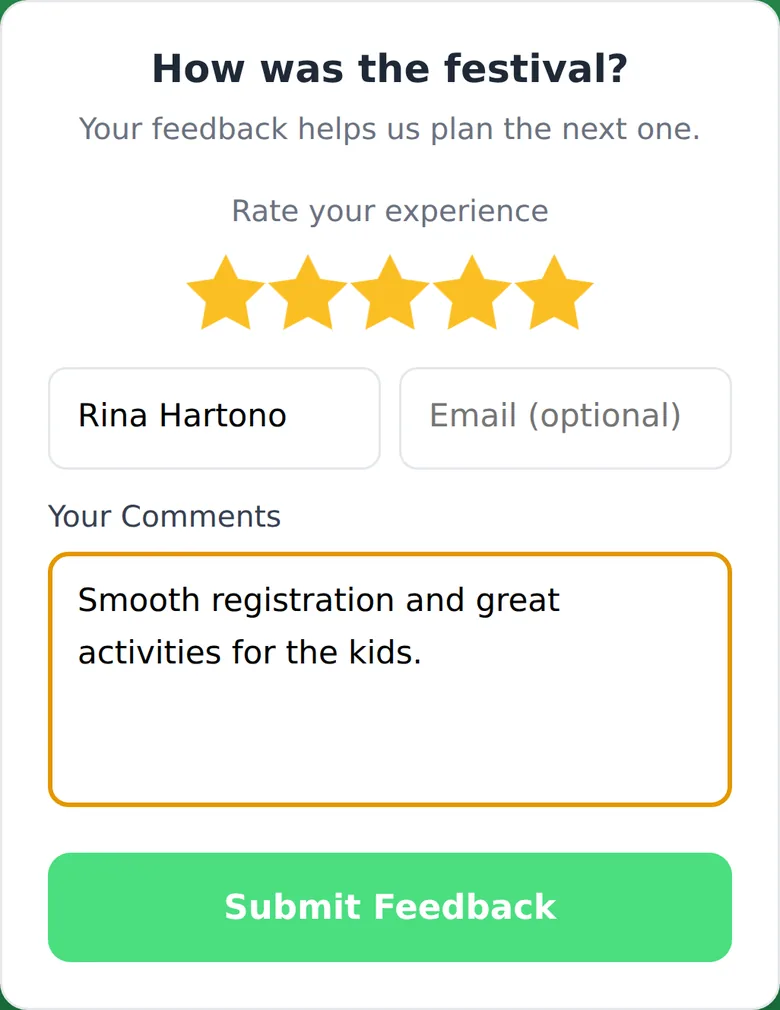
What visitors see
Step 4: Review feedback
Open My NexHub, select your hub, and click View Feedback in the Actions panel.
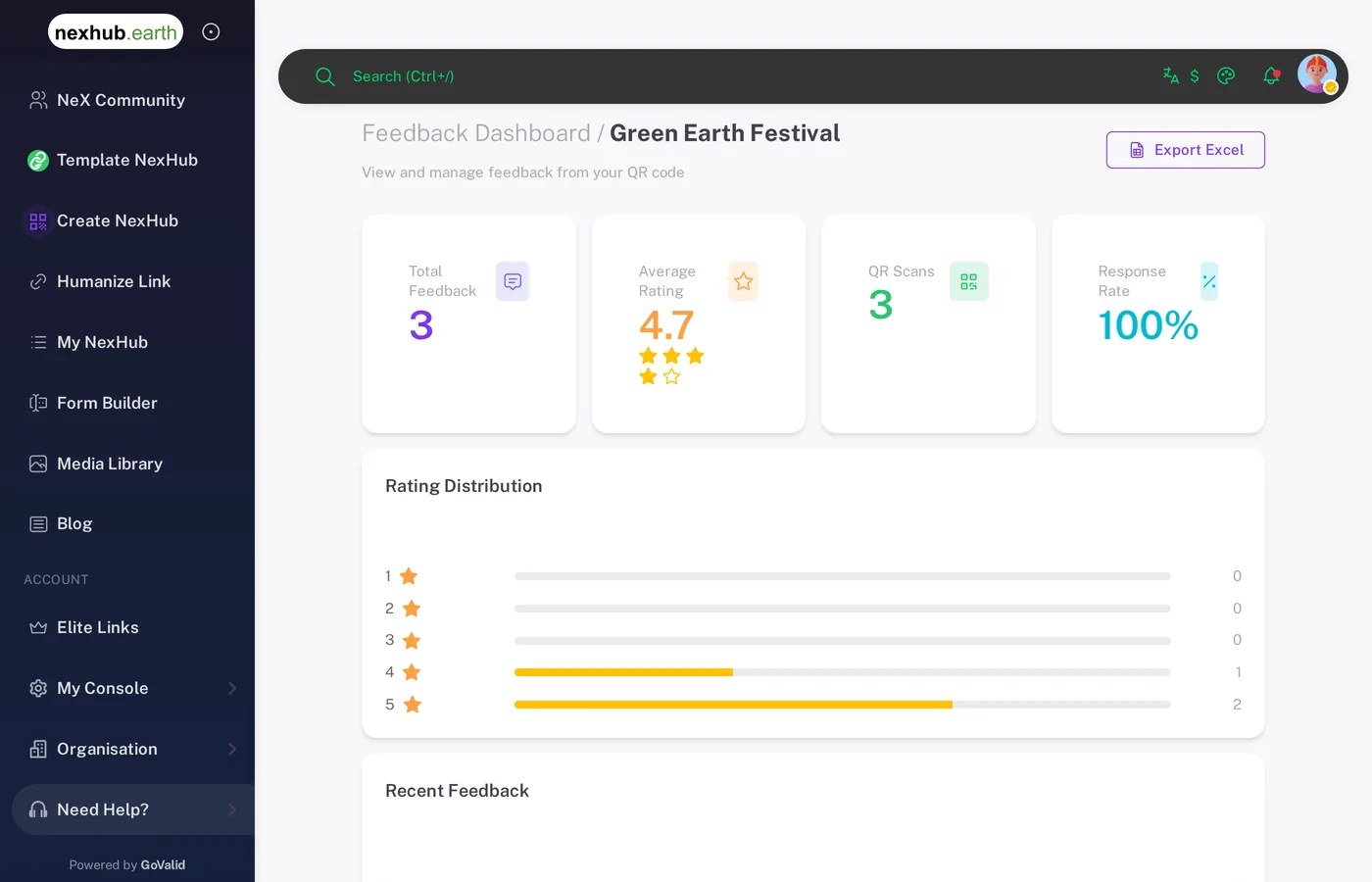
The Feedback Dashboard shows:
- Total Feedback, Average Rating, QR Scans and Response Rate (feedback received compared with scans)
- Rating Distribution from 1 to 5 stars
- Recent Feedback with each comment, name and email
- Export Excel to download every response
Ideas
| Use case | Tip |
|---|---|
| Restaurants and cafes | Add categories such as Food, Service and Ambience. |
| Events and seminars | Ask for email so you can send the next invitation. |
| Training and classes | Keep it anonymous: turn off name and email for more honest answers. |
| Public services | Place the QR at the counter and watch the response rate in the dashboard. |